> For the complete documentation index, see [llms.txt](https://developer.kizen.com/llms.txt). Markdown versions of documentation pages are available by appending `.md` to page URLs; this page is available as [Markdown](https://developer.kizen.com/docs/concepts/objects/custom-fields/custom-field-permissions.md).
# Custom Field Permissions
Learn how Custom Field Permissions control field-level visibility and edit access to protect sensitive data and enforce layered security across objects and records.
{% hint style="success" %}
**Audience:** Admins, Developers, Solution Architects
**Purpose:** Explains how custom field permissions control visibility and edit access, and helps administrators configure field-level governance within Permission Groups.
{% endhint %}
## Overview
Custom field permissions define who can view or modify specific field values within accessible records, enabling granular control over sensitive data and operational integrity.
Because field permissions refine access within already accessible records, they serve as a critical governance control rather than a primary access mechanism.
Field-level access is configured inside **Permission Groups** and applies to both standard and custom fields on an object. These controls refine access after object-level and record-level permissions have already been granted. For more context, see [Object Permissions](/docs/concepts/objects/object-configuration/object-permissions.md).
Custom field permissions help administrators:
* Protect sensitive information
* Prevent unauthorized edits
* Maintain reporting integrity
* Support governance policies
***
## How Field Permissions Work
Field permissions are configured within Permission Groups and apply to both standard and custom fields on an object. The selected access level determines whether users can modify field values within records they are already permitted to access.
Access is evaluated cumulatively:
* Object permissions determine whether a user can access the object
* Record-level controls determine which records are accessible
* Field permissions determine which fields within those records are visible or editable
All layers must allow access for a user to modify a field value.
For example, a user may have access to a Deal record but not have permission to view the “Margin” field. In this case, the record remains visible, but the restricted field is hidden.
Field permissions refine access. They do not override object-level denial of access, and they cannot grant visibility where object or record access does not exist.
Configuring Field Permissions
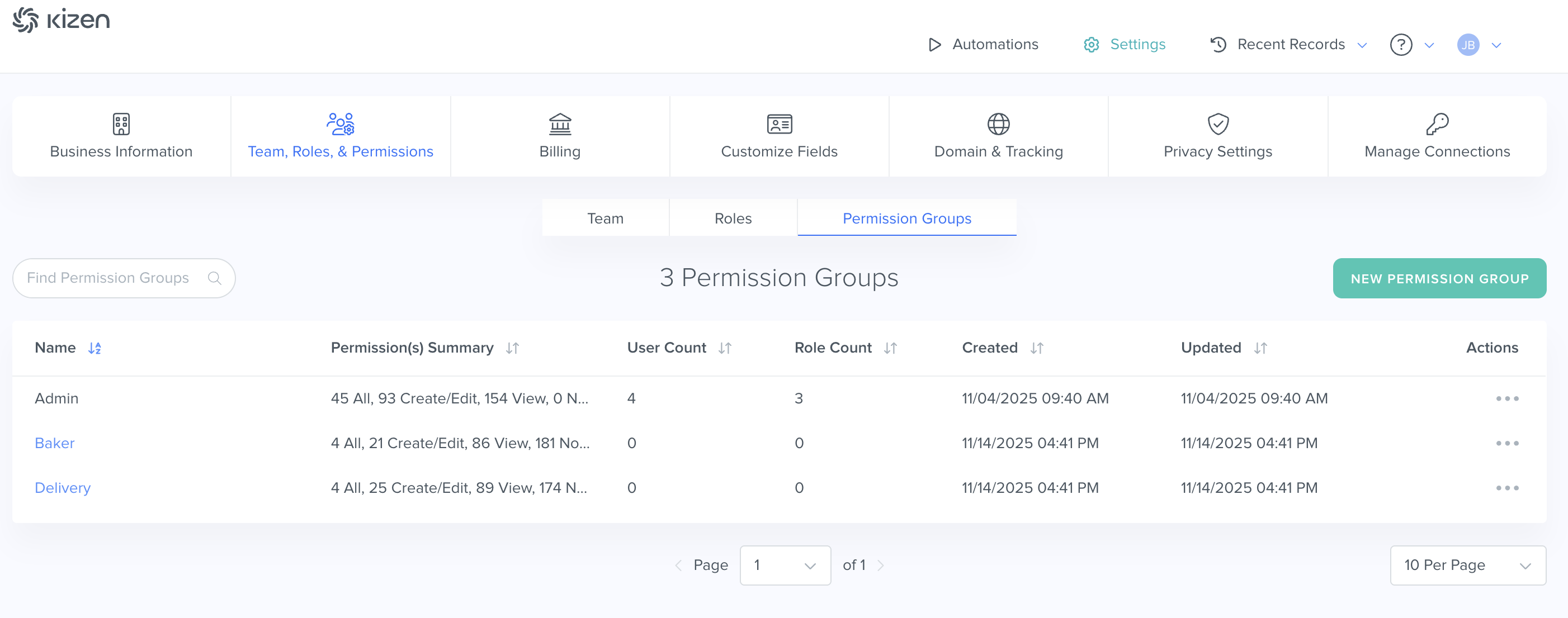
#### 1. Select settings in Kizen's navigation
#### 2. Go to Team, Roles, & Permissions
Navigate to the Permissions Group subtab.
#### 3. Edit the Permissions Group
Navigate to the Permission Group to edit.
#### **4. Select the three dots underneath Actions, and select Edit.**
#### 5. View the Permission Group settings
The example below is for a Deliveries Custom Object.
#### 6. Scroll down until you reach Default Fields
You can edit your custom field permissions from here.
***
## Permission Types
Custom fields support the following access levels:
* **None:** The field is hidden
* **View:** The field value is visible but cannot be edited
* **Create/Edit:** The field value can be viewed and modified
* **Delete/All (**[**Files**](#files-field) **only):** The field value can be hard deleted from the timeline.
These permission types control whether users can:
* View field data
* Modify field values
* Remove or delete field data (where supported)
Selecting the appropriate permission level ensures field data is accessible only to users responsible for maintaining it, supporting structured governance.
For more information, see [Record Permissions](broken://pages/uhMfsDTB0PmOzSEoHKUi).
***
## When to Restrict Field Access
Restrict field access when governance, compliance, or operational requirements require controlled visibility or modification.
Limiting field access may be appropriate for:
* Sensitive financial information
* Personally identifiable information (PII)
* Compensation details
* Approval-only fields
* System-managed values populated by space.vars.automations
Restrict **edit access** when:
* Field values drive reporting or forecasting
* Data is managed by space.vars.automations or integrations
* Changes should be limited to specific roles
Restrict **visibility** when:
* Data is confidential
* Visibility creates compliance or privacy risk
* Information is not relevant to certain roles
Administrators should align field restrictions with organizational policies and clearly defined operational responsibilities.
Over-restricting field access can disrupt reporting, space.vars.automations, or integrations that rely on consistent field visibility. Evaluate restrictions carefully to balance security and operational effectiveness.
***
## Additional Information
#### Default for New Fields
Each Permission Group includes a **Default for New Fields** setting. This determines the automatic access level assigned to newly created fields.
Administrators should configure this setting carefully to prevent unintended exposure of new data. Regularly review this setting to ensure it aligns with governance standards.
#### Files Field
The **Files** field type includes an additional permission that allows permanently deletion (“hard delete”). Most other fields allow removal or archiving of values but do not support permanent deletion.
Custom Field Best Practices
* Set intentional defaults for new fields.
* Restrict edit access for reporting-critical or automation-driven fields.
* Limit visibility of confidential or regulated data.
* Align permissions with defined roles rather than individuals.
* Review Permission Groups periodically to reduce configuration risk.
* Document governance decisions related to restricted fields.
***
## What’s Next
Understanding how field-level controls interact with broader access management ensures secure and predictable data governance. To design secure and scalable data models, review related topics:
Related Topics
* [Custom Fields](/docs/concepts/objects/custom-fields.md)
* [Customize Object Fields](/docs/concepts/objects/object-configuration/customize-object-fields.md)
* [Object Permissions](/docs/concepts/objects/object-configuration/object-permissions.md)
* [Custom Field APIs](/docs/concepts/objects/custom-fields/custom-field-apis.md)
***
---
# Agent Instructions
This documentation is published with GitBook. GitBook is the documentation platform designed so that both humans and AI agents can read, navigate, and reason over technical content effectively. Learn more at gitbook.com.
## Querying This Documentation
If you need additional information that is not directly available in this page, you can query the documentation by asking a question.
Perform an HTTP GET request on the following URL with the `ask` and `goal` query parameters:
```
GET https://developer.kizen.com/docs/concepts/objects/custom-fields/custom-field-permissions.md?ask=&goal=
```
`ask` is the immediate question: it should be specific, self-contained, and written in natural language.
`goal` is what the user is ultimately trying to achieve, the reason they need the answer. Sharing it helps GitBook give you a better, more relevant answer. A goal is most helpful when it describes the outcome the user wants rather than restating the question. For example, with `ask=how do I create an API token`, a goal like `automate deployments from our CI pipeline` lets GitBook tailor the answer to that use case.
The response will contain a direct answer to the question and relevant excerpts and sources from the documentation.
Use this mechanism when the answer is not explicitly present in the current page, you need clarification or additional context, or you want to retrieve related documentation sections.