> For the complete documentation index, see [llms.txt](https://developer.kizen.com/llms.txt). Markdown versions of documentation pages are available by appending `.md` to page URLs; this page is available as [Markdown](https://developer.kizen.com/docs/concepts/objects/records/record-permissions.md).
# Record Permissions
Learn how record permissions control data visibility, record-level access, bulk actions, and API behavior within a layered object and role-based security model.
{% hint style="success" %}
**Audience:** Admins, Developers, Solution Architects
**Purpose:** Explains how space.vars.entity-level permissions govern visibility and actions across the platform and how they intersect with space.vars.object permissions, relationships, teams, space.vars.automations, and APIs.
{% endhint %}
## Overview
space.vars.entity permissions determine who can see and act on space.vars.entitys within an space.vars.object.
Permissions are evaluated through a layered model:
1. space.vars.object-level access
2. space.vars.entity-level scope
3. Action permissions (single and bulk)
4. Field-level permissions
Each space.vars.object supports two primary space.vars.entity scopes:
* **All Records**
* **My Associated Records**
These scopes can be assigned different access levels within a Permission Group. space.vars.entity permissions are critical for:
* Controlling data visibility
* Governing bulk operations
* Managing space.vars.automation behavior
* Preserving archive integrity and audit history
For more information on how permissions relate to space.vars.objects, review [Object Permissions](/docs/concepts/objects/object-configuration/object-permissions.md).
***
## Record Permissions
space.vars.entity-level permissions are configured within each individual space.vars.object’s settings or from the Permission Groups Modal. These permissions control which users can access and manage that space.vars.object’s configuration and what permissions they have within that space.vars.object.
These permissions determine whether users can:
* View All space.vars.entitys or only associated space.vars.entitys
* Edit, Create, Delete or Unarchive space.vars.entitys
* Access space.vars.entity views and actions (single or bulk)
* Modify space.vars.automations
* Configure default field permissions
These permissions are configured per space.vars.object and can vary across different Permission Groups. For example:
* Two space.vars.objects may both be visible to a user, but only one allows space.vars.entity creation.
* One space.vars.object may allow exports while another blocks exports.
* A user may be able to view space.vars.entitys but not archive or upload them.
### How Configuration and Record Permissions Interact
space.vars.object configuration permissions and space.vars.entity data permissions control different behaviors.
| **Object Configuration Permissions** | space.vars.object structure and configuration |
Edit space.vars.object settings
Configure fields
Customize layouts
Manage space.vars.object-level permissions
|
Visibility of individual space.vars.entitys
space.vars.entity-level actions
|
| ------------------------------------ | ------------------------------------------------------------------------------------------------------------------------------ | ----------------------------------------------------------------------------------------------------------------------------------------------------------------------------------------------------------------------------------------------------------------------------------------------------------------------------------- | --------------------------------------------------------------------------------------------------------------------------------------------------------------------- |
| **Record Permissions** | space.vars.entity data and actions within an space.vars.object |
View space.vars.entitys within an association scope (All or My Associated)
Create, edit, archive, delete space.vars.entitys
Perform single-space.vars.entity actions
Perform bulk actions
| Editing space.vars.object structure or settings |
Since these permissions are evaluated independently, misalignment can lead to confusing behavior. For example:
* A user may be able to modify object settings but see no space.vars.entitys.
* A user may see records but be unable to edit the space.vars.object configuration.
* API calls may return empty results if record-level access is restricted, even when space.vars.object visibility is enabled.
When troubleshooting access issues, verify both space.vars.object configuration permissions and space.vars.entity data permissions.
***
## How Record Permissions Work
Each space.vars.object includes separate permission rows for:
* **All \[Object Name] Records**
* **My \[Object Name] Associated Records**
Administrators can assign different access levels to each scope. For example:
* View access to All space.vars.entitys
* Create/Edit access to My Associated space.vars.entitys
This allows broad visibility while restricting modification rights to associated records.
Configuring Record Permissions
#### 1. Select settings in Kizen's navigation
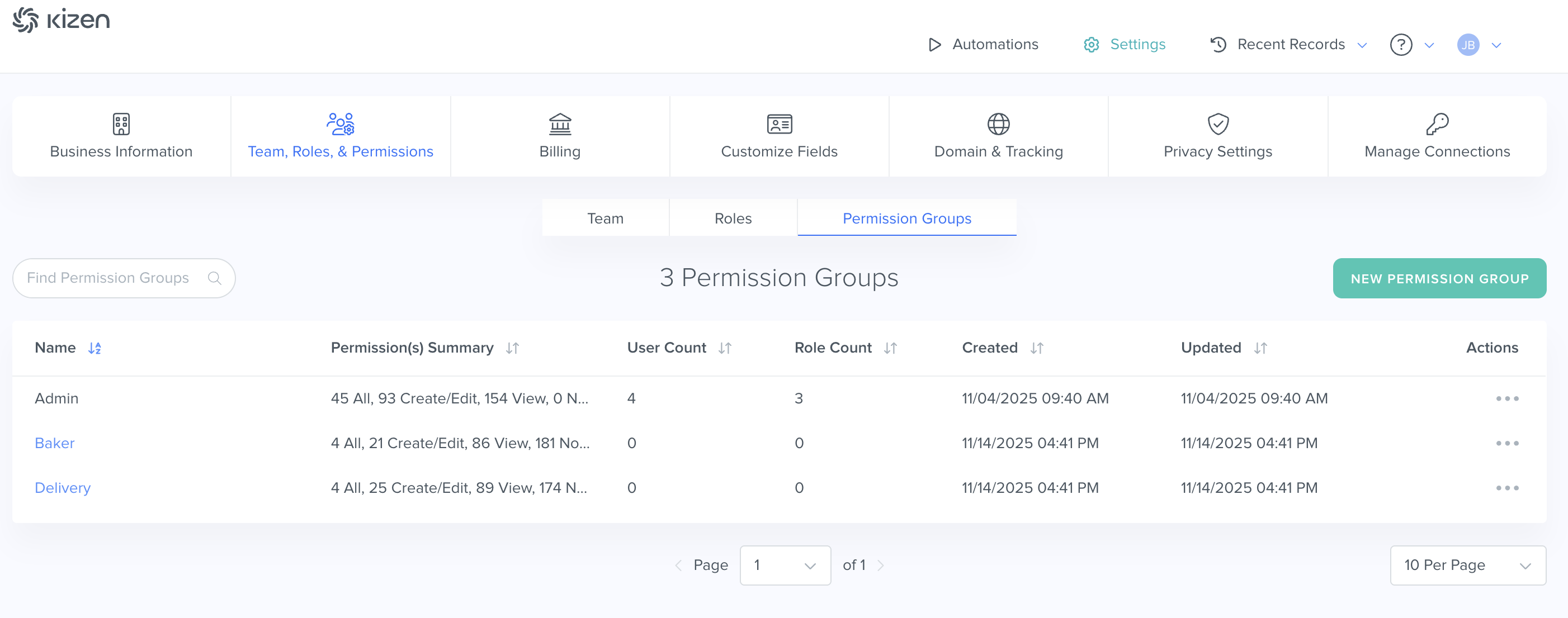
#### 2. Go to Team, Roles, & Permissions
Navigate to the **Permissions Group** subtab.
#### 3. Select New Permission Group
#### **4. Scroll down and toggle on the Record Permissions you want to add.**
In the example shown, **Custom Object - Products** is selected.
#### 5. Select the drop-down arrow on the Record Permission you're editing
Selecting the arrow will show a drop-down of the various permissions that can be set.
#### 6. Edit permissions for your Record
You can now edit permissions on your space.vars.entitys.
### Tiered Access Levels
Each scope row uses tiered access levels:
* **None**
* **View**
* **Create/Edit**
* **Delete/All**
These levels determine the degree of access within that scope. Delete/All represents the highest access level within a scope row and governs space.vars.entity-level deletion or archive capability for that scope.
### What “My Associated Records” Means
“My Associated space.vars.entitys” grants access only to space.vars.entities where the user is the owner, explicitly assigned as a team member, or inherits access through a defined relationship.
Association may include:
* space.vars.entity ownership (Owner field)
* Explicit team association
* Relationship-based inherited association
Associations determine whether a record falls within a user’s “My Associated space.vars.entitys” scope.
An interaction (such as modifying a record or logging activity) generates an association. However, a user can be associated with a record without having directly interacted with it. To learn more, check out Team Interactions in Records (**Coming Soon**).
See [Object Relationships](/docs/concepts/objects/object-configuration/object-relationships.md) for details on how relationship modeling affects inherited access.
#### Unarchive Permissions
Unarchive permissions are explicitly separated into:
* Unarchive Any space.vars.entity
* Unarchive My space.vars.entitys
Unarchive is not implied by Create/Edit access and must be granted independently.
When a record is archived, its owner and team associations are preserved so that unarchive permissions can be enforced correctly. Archived space.vars.entitys do not appear in active space.vars.entity views.
#### Record Creation
space.vars.entity creation is controlled separately through: Create New space.vars.entitys
Create permission is not automatically implied by other scope settings and must be explicitly granted.
***
## Record-Specific Permission Areas
space.vars.entity permissions are configured inside Permission Groups and intersect with space.vars.object-level configuration.
### Record Overview Permissions
Access to space.vars.entity view types is permissioned separately from record visibility. Under space.vars.entity Overview, administrators can configure access to:
* Chart View
* Board View
* Quick Filters
Users may have record access but be restricted from specific view modes.
### Single Record Actions
Single-space.vars.entity permissions control actions performed on an individual space.vars.entity. These permissions determine which action controls appear on the space.vars.entity detail page.
Single-space.vars.entity permissions include:
* Modify space.vars.automation
* Team Associations
* View Timeline
For Contact space.vars.entitys, additional single-space.vars.entity actions are available, including:
* Send Single Message (email or SMS)
* Manage Subscription Status
* Access communication history
For more details, see [Contact Permissions](/docs/concepts/objects/contacts/contact-permissions.md).
### Agentic Workflow Overlap
Starting an space.vars.automation generally requires Create/Edit access to the space.vars.entity.
space.vars.automations execute in a separate permission context. Users who can modify space.vars.automations may be able to cause record changes that exceed their normal UI editing permissions.
Custom Actions can expose specific space.vars.automations and may allow execution with more limited access. Permission to modify space.vars.automations should be treated as an elevated capability. For more detail, see Agentic Workflow Actions **(Topic Coming Soon)**.
### Record-Specific Bulk Actions
Bulk permissions are grouped separately under **Perform Bulk Actions**.
Bulk permissions include:
* Change Field Value
* Modify space.vars.automation
* Add Team Associations
* Export to CSV
* Archive Records
* Upload Records
Bulk permissions are configured separately from single-record permissions, but they are constrained by record-level scope access. If a user does not have sufficient scope access (such as Create/Edit or Delete/All), corresponding bulk actions will not be available.
Because bulk operations can affect large numbers of space.vars.entitys, they should be granted intentionally and aligned with appropriate scope access.
***
## Field-Level Permissions Interaction
space.vars.entity permissions operate alongside field-level permissions.
Field-level permissions are evaluated after space.vars.entity-level access is granted.
Within a Permission Group, administrators can configure:
* Default access level for new fields
* Individual field permissions (None, View, Create/Edit)
Field-level permissions apply to both default and custom fields. Even if a user has space.vars.entity-level access, certain fields may remain hidden or read-only.
Files include a specific Delete permission at the field level that enables hard deletion of a file rather than simply unlinking it from a space.vars.entity.
***
## Record Permissions in API Responses
space.vars.entity permissions are enforced consistently across the UI and APIs. Effective permissions are evaluated at request time.
API responses include an `access` space.vars.object indicating space.vars.entity-level permissions (such as view, edit, remove). If a user lacks permission:
* space.vars.entitys may not appear in search results
* Update operations may fail
* Action-based operations may be rejected
Most space.vars.entity APIs require specifying which fields to return rather than returning all fields by default. For endpoint details, see [Record APIs](/docs/concepts/objects/records/records-apis.md).
***
## Important Considerations
Keep the following in mind when configuring or troubleshooting record permissions:
* Platform-level space.vars.object access does not imply space.vars.entity-level access.
* Access to a record does not automatically grant access to view modes, single-space.vars.entity actions, bulk operations, or field-level editing.
* Association modeling directly impacts visibility.
* space.vars.automation and bulk permissions can significantly expand user impact.
* Missing space.vars.entitys or fields often indicate permission restrictions, not missing data.
* Integrations should evaluate access flags before attempting write operations.
Permission misconfiguration is a common cause of empty UI states and empty API responses.
***
## What’s Next
Next, review [Record APIs](/docs/concepts/objects/records/records-apis.md) to understand how space.vars.entities are created, retrieved, updated, archived, and managed programmatically or you can continue exploring other space.vars.entities documentation with the topics below:
Related Topics
* [Records](/docs/concepts/objects/records.md)
* [Record Operations](broken://pages/I9VbT9OrruO3QISn2RHF)
* [Records Core Concepts](/docs/concepts/objects/records/records-core-concepts.md)
* [Records Data Model](/docs/concepts/objects/records/records-data-model.md)
---
# Agent Instructions
This documentation is published with GitBook. GitBook is the documentation platform designed so that both humans and AI agents can read, navigate, and reason over technical content effectively. Learn more at gitbook.com.
## Querying This Documentation
If you need additional information that is not directly available in this page, you can query the documentation dynamically by asking a question.
Perform an HTTP GET request on the current page URL with the `ask` query parameter, and the optional `goal` query parameter:
```
GET https://developer.kizen.com/docs/concepts/objects/records/record-permissions.md?ask=&goal=
```
`ask` is the immediate question: it should be specific, self-contained, and written in natural language.
`goal` is optional and describes the broader end goal you are ultimately trying to accomplish on behalf of the user. GitBook uses it to tailor the answer towards what is most useful for that goal.
The response will contain a direct answer to the question and relevant excerpts and sources from the documentation.
Use this mechanism when the answer is not explicitly present in the current page, you need clarification or additional context, or you want to retrieve related documentation sections.