> For the complete documentation index, see [llms.txt](https://developer.kizen.com/llms.txt). Markdown versions of documentation pages are available by appending `.md` to page URLs; this page is available as [Markdown](https://developer.kizen.com/docs/integrations-and-plugins/integrations/google-and-outlook-calendar/enable-your-calendar-integration.md).
# Enable Your Calendar Integration
Learn how to enable Google or Microsoft Calendar Integration in Kizen to create calendar events from records, connect scheduling workflows, and control how calendar actions are used.
{% hint style="success" %}
**Audience:** Admins, Developers, Solution Architects
**Purpose:** Explains how to enable and configure Calendar Integration, including prerequisites, permissions, and expected behavior.
{% endhint %}
## Overview
{% hint style="warning" %}
**Caution:** This setup reflects Kizen's default configuration. Your administrator may have customized your layout, so columns or navigation may appear differently. Trial accounts may have limited features.
{% endhint %}
Enabling Google or Microsoft Calendar Integration connects your space.vars.Kizen\_company\_name environment to your external calendar so you can create calendar events directly from space.vars.entities. Once enabled, calendar actions become available across supported date fields, allowing users to schedule meetings and planned work in their calendar while keeping a link back to space.vars.Kizen\_company\_name.
***
## Before You Begin
Before configuring Calendar Integration, ensure you have:
* Access to the App Marketplace in space.vars.Kizen\_company\_name
* A Google or Microsoft account with calendar access
* Permission to create calendar events in the selected calendar account
* A supported browser with access to your Google or Microsoft sign-in session
Keep in mind:
* Calendar events are created in the calendar account currently signed into your browser
* Calendar Integration does not automatically sync with Integrated Inbox or email accounts
* Events are created only when a user explicitly selects the calendar button. space.vars.Kizen\_company\_name does not automatically create or modify calendar events
***
## Enable Your Calendar Integration
{% stepper %}
{% step %}
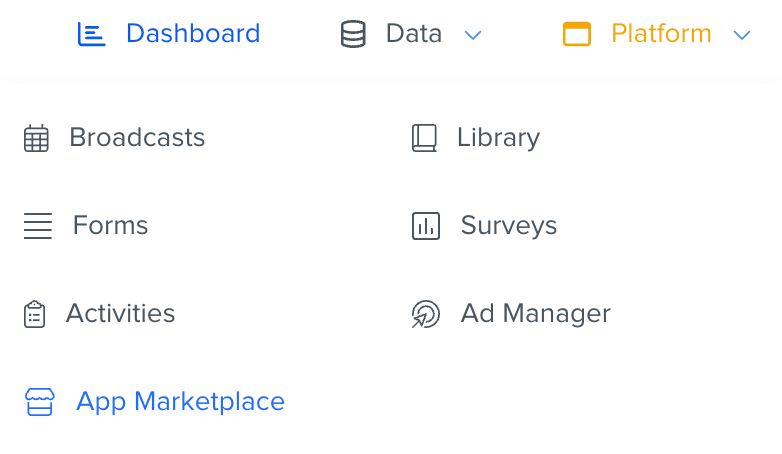
#### Navigate to **Platform** > **App Marketplace**
{% endstep %}
{% step %}
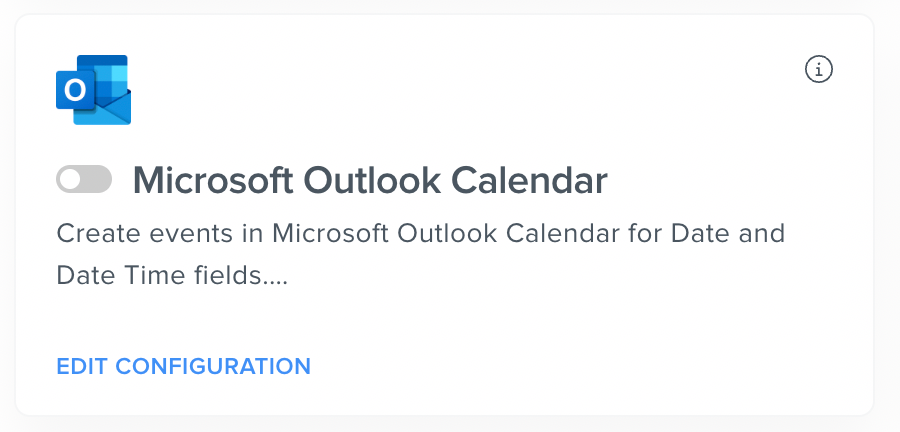
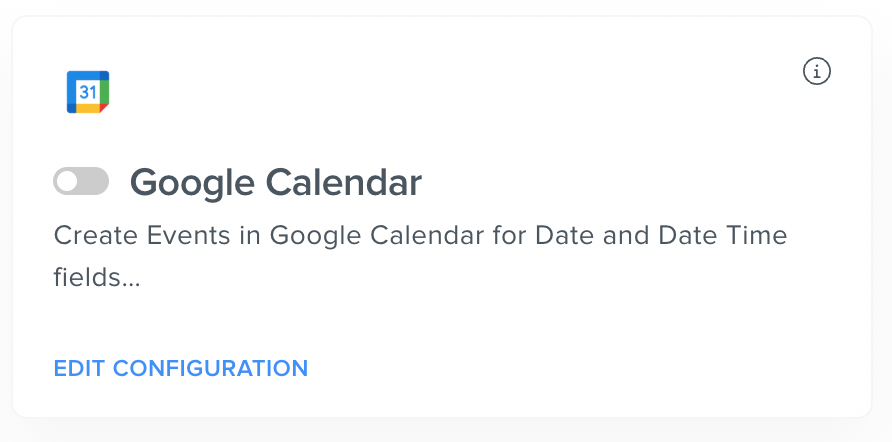
#### Locate **Google Calendar** or **Outlook Calendar** in the **App Marketplace**
{% endstep %}
{% step %}
#### Toggle the integration on
{% endstep %}
{% endstepper %}
Your calendar should now be integrated.
{% hint style="info" %}
**Permissions note**: Users need permission to manage apps in the **App Marketplace** to enable calendar integrations.
{% endhint %}
***
## What's Next
Next, go to [Creating Calendar Events](/docs/integrations-and-plugins/integrations/google-and-outlook-calendar/create-calendar-events-from-contacts.md) to learn how to manually create calendar events from records in space.vars.Kizen\_company\_name. You can also review the [Google and Outlook Calendar Integration](/docs/integrations-and-plugins/integrations/google-and-outlook-calendar.md) to understand how the calendar integration works or read any of the topics below:
Related Topics
* [Google and Outlook Calendar Integration](/docs/integrations-and-plugins/integrations/google-and-outlook-calendar.md)
* [Create Calendar Events from Contacts](/docs/integrations-and-plugins/integrations/google-and-outlook-calendar/create-calendar-events-from-contacts.md)
---
# Agent Instructions
This documentation is published with GitBook. GitBook is the documentation platform designed so that both humans and AI agents can read, navigate, and reason over technical content effectively. Learn more at gitbook.com.
## Querying This Documentation
If you need additional information that is not directly available in this page, you can query the documentation dynamically by asking a question.
Perform an HTTP GET request on the current page URL with the `ask` query parameter, and the optional `goal` query parameter:
```
GET https://developer.kizen.com/docs/integrations-and-plugins/integrations/google-and-outlook-calendar/enable-your-calendar-integration.md?ask=&goal=
```
`ask` is the immediate question: it should be specific, self-contained, and written in natural language.
`goal` is optional and describes the broader end goal you are ultimately trying to accomplish on behalf of the user. GitBook uses it to tailor the answer towards what is most useful for that goal.
The response will contain a direct answer to the question and relevant excerpts and sources from the documentation.
Use this mechanism when the answer is not explicitly present in the current page, you need clarification or additional context, or you want to retrieve related documentation sections.