Retrieve Zendesk Data in an Agentic Workflow
Audience: Admins, Developers, Solution Architects
Purpose: Explains how to use Agentic Workflows in Kizen to retrieve live ticket and user data from the Zendesk platform
Overview
Caution: This setup reflects Kizen's default configuration. Your administrator may have customized your layout, so columns or navigation may appear differently. Trial accounts may have limited features.
With the Zendesk integration, you can load ticket and user data from the Zendesk® platform directly into Kizen for use in Agentic Workflows.
Before You Begin
To retrieve Zendesk data in an Agentic Workflow, you need an active, authenticated connection to the Zendesk platform.
See Set Up Zendesk in Kizen for details.
Retrieve Zendesk Data in an Agentic Workflow
To retrieve Zendesk data in an Agentic Workflow:
Choose the function to perform
In the Action Settings section of the Add Action modal, select the Action dropdown menu, and do one of the following:
To return information about a specific Zendesk ticket, select Get Ticket, and set up the action. For more information, see Set Up a Get Ticket Action below.
To return a Zendesk ticket's comment thread, select Get Ticket Comments, and set up the action. For more information, see Set Up a Get Ticket Comments Action below.
To return one or more Zendesk tickets based on search criteria, select Search Tickets, and set up the action. For more information, see Set Up a Search Tickets Action below.
To return a specific Zendesk user, or to create this user if they don't exist, select Find or Create User, and set up the action. For more information, see Set Up a Find or Create User Action below.
Set Up a Get Ticket Action
The Get Ticket action returns information about the specified Zendesk ticket.
To set up a Get Ticket action:
Configure the destinations for the script outputs
For each of the fields in the Script Outputs section of the modal, select the destination of the field's value from the Output Destination dropdown menu, and then configure the destination with the additional controls that appear.

The fields are as follows:
Assignee ID
String
The ID of the Zendesk user assigned to remediate the ticket
No
Created At
DateTime
The date and time when the ticket was created
No
Description
String
The body of the ticket
No
External ID
String
The Kizen ID of the integration user
No
Group ID
String
The ID of the group associated with the requester
No
Organization ID
String
The ID of the organization associated with the requester
No
Priority
String
The priority of the ticket
No
Requester Email
Email
The email address of the Zendesk user who opened the ticket
No
Requester ID
String
The ID of the Zendesk user who opened the ticket
No
Status
String
The status of the ticket
No
Tags
String
A comma-separated list of tags associated with the ticket
No
Ticket Title
String
The title of the ticket
No
Ticket Type
String
The type of the ticket
No
Ticket URL
String
The URL of the ticket
No
Updated At
DateTime
The date and time when the ticket was last updated
No
Set Up a Get Ticket Comments Action
The Get Ticket Comments action returns the text of up to 1,000 comments from the conversation thread of the specified Zendesk ticket. The action also returns the most recent comment separately, along with information about its author and visibility.
To set up a Get Ticket Comments action:
Configure the sources for the script inputs
For each of the fields in the Script Inputs section of the Add Action modal, select the source of the field's value from the Input Source dropdown menu, and then configure the source with the additional controls that appear.

The fields are as follows:
Limit
String
The maximum number of comments to return, starting from the most recent. The default value is 100. The maximum value is 1000.
No
Public Only
Boolean
Whether the integration omits (true) or includes (false) internal notes in the comment thread. If you don't select a value, the integration defaults to false
No
Ticket ID
String
The ID of the ticket associated with the comments.
Yes
Configure the destinations for the script outputs
For each of the fields in the Script Outputs section of the modal, select the destination of the field's value from the Output Destination dropdown menu, and then configure the destination with the additional controls that appear.

The fields are as follows:
Last Comment Author ID
String
The ID of the author of the most recent comment
No
Last Comment Body
String
The body of the most recent comment
No
Last Comment Is Public
Boolean
Whether the most recent comment is available to the public
No
Comment Count
Number
The total number of comments returned
No
Thread Text
String
All the returned comments in a single thread
No
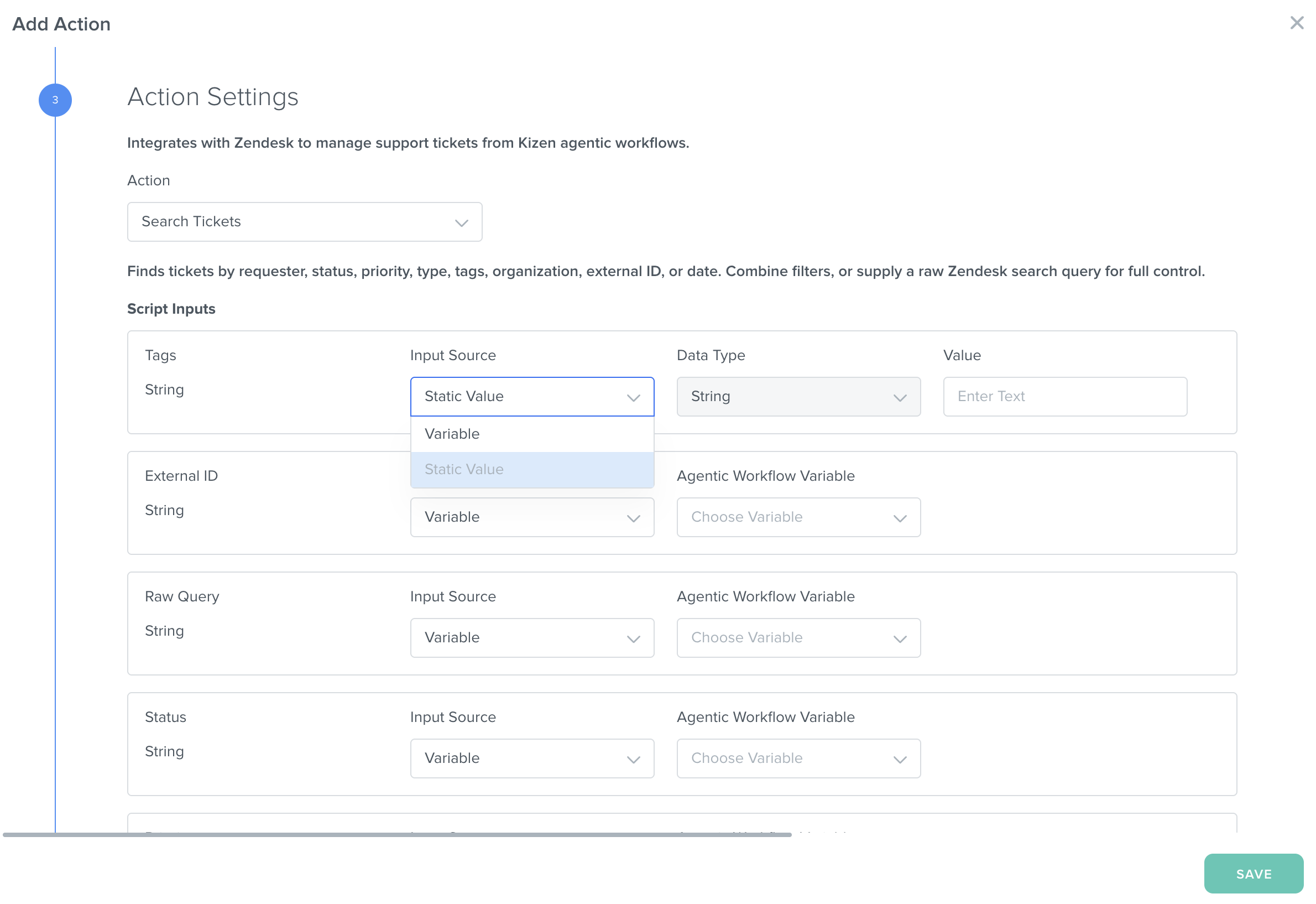
Set Up a Search Tickets Action
The Search Tickets action returns a subset of Zendesk tickets based on the specified search criteria or a raw SQL statement.
To set up a Search Tickets action:
Configure the sources for the script inputs
For each of the fields in the Script Inputs section of the Add Action modal, select the source of the field's value from the Input Source dropdown menu, and then configure the source with the additional controls that appear.

The fields are as follows:
Created After
DateTime
The earliest ticket creation time to include in the results.
No
External ID
String
The Kizen ID of the user associated with the search.
No
Limit
String
The maximum number of tickets to return, starting from the most recent. The default value is 100. The maximum value is 1000.
No
Organization ID
String
The ID of the organization associated with the requester by which to target the search.
No
Priority
String
The priority of the ticket by which to target the search.
No
Raw Query
String
The SQL query to use to return the results.
No
Requester Email
Email
The email address of the requester by which to target the search.
No
Status
String
The status of the ticket by which to target the search.
No
Tags
String
A comma-separated list of tags by which to target the search.
No
Ticket Type
String
The type of the ticket by which to target the search.
No
Updated After
DateTime
The earliest ticket update time to include in the results.
No
In most cases, these inputs represent search conditions. For example, specifying closed for the Status field returns only those tickets whose status is closed. Similarly, supplying a value for the Updated After field limits the results to those tickets updated after the specified date. The Raw Query field is different in that it takes a SQL statement to use as the exact selector for search results, while the Limit field returns a subset of matches.
Configure the destinations for the script outputs
For each of the fields in the Script Outputs section of the modal, select the destination of the field's value from the Output Destination dropdown menu, and then configure the destination with the additional controls that appear.

The fields are as follows:
Count
Number
The number of tickets returned in the search results
No
Tickets
String
A stringified JSON array of the search results
No
Set Up a Find or Create User Action
The Find or Create User action searches for the specified Zendesk user in this order:
The Zendesk user ID
The external user ID
The user's email address
The user's name
If none of these identifiers yields a match, you can create the user in the Zendesk platform.
To set up a Find or Create User action:
Configure the sources for the script inputs
For each of the fields in the Script Inputs section of the Add Action modal, select the source of the field's value from the Input Source dropdown menu, and then configure the source with the additional controls that appear.

The fields are as follows:
Create If Missing
Boolean
Whether to create the user if no record exists
No
Email
The email address of the user to find
No
External ID
String
The Kizen ID of the user to find
No
Name
String
The name of the user to find
No
Organization ID
String
The ID of the organization associated with the user to find
No
Phone
String
The phone number associated with the user to find
No
Zendesk User ID
String
The Zendesk ID of the user to find
No
Configure the destinations for the script outputs
For each of the fields in the Script Outputs section of the modal, select the destination of the field's value from the Output Destination dropdown menu, and then configure the destination with the additional controls that appear.

The fields are as follows:
Email
The email address of the user
No
Name
String
The name of the user
No
Organization ID
String
The ID of the organization associated with the user
No
Role
String
The role associated with the user
No
User ID
String
The Zendesk ID of the user
No
Was Created
Boolean
Whether the integration created the user after it didn't find a match with an existing user
No
What's Next
Continue to Create or Update Zendesk Data in an Agentic Workflow to learn how to push data from Kizen to the Zendesk platform through Agentic Workflows.
Zendesk® and the stylized Z logo are registered trademarks of Zendesk, Inc. Kizen's Zendesk integration is not affiliated with, sponsored by, or endorsed by Zendesk, Inc.
Last updated
Was this helpful?