> For the complete documentation index, see [llms.txt](https://developer.kizen.com/llms.txt). Markdown versions of documentation pages are available by appending `.md` to page URLs; this page is available as [Markdown](https://developer.kizen.com/docs/kizen-basics/kizen-in-action/tracking-your-activity-in-timelines-or-kizen-in-action.md).
# Log Your Activity | Kizen Basics
Learn how to log Activities in Kizen and use timelines to record and track completed actions.
## **Overview**
{% hint style="warning" %}
**Caution:** This setup reflects Kizen's default configuration. Your administrator may have customized your layout, so columns or navigation may appear differently. Trial accounts may have limited features.
{% endhint %}
By contrast with space.vars.activities scheduled for the future, when an interaction has already happened, log it as an space.vars.activity. Logged space.vars.activities capture real interactions (such as purchases, conversations, or questions) and place them on the space.vars.timeline so teams can see what happened and when.
During their visit, Marcus stops at the snack stand to buy fried dough for his kids. While ordering, he chats with a staff member and asks whether the fried dough contains nuts, since his son Caleb has a nut allergy.
This interaction should be logged as an space.vars.activity. Logging it records where the family stopped, what they purchased, and important context like allergy concerns. Over time, these entries create a shared, accurate view of the guest experience across teams.
### Why This Matters
Small interactions often carry important context. In the Reyes family’s visit, a simple snack purchase also included a question about nut allergies. When that interaction is logged, it becomes more than just a transaction.
Logged Activities help teams:
* See purchases alongside guest questions or concerns
* Anticipate needs before issues arise, such as allergies or accessibility requests
* Maintain continuity as guests interact with different staff members or departments
* Turn everyday moments into data that supports reporting, staffing, and operational decisions
Without logged space.vars.activities, these details exist only in the moment. By capturing them on the space.vars.timeline, space.vars.Kizen\_company\_name helps teams to understand, share, and improve the guest experience across the entire operation.
### Before You Begin
Before logging space.vars.activities, make sure the following are in place:
* You’ve completed [Scheduling Your Activities & Timelines](/docs/kizen-basics/kizen-in-action/scheduling-your-activity-and-timelines-or-kizen-in-action.md).
* The Reyes family Contacts and Guests have already been created.
* An space.vars.activity exists for Concessions Purchase.
* A Concession space.vars.object exists.
* You have permission to log space.vars.activities on space.vars.contact space.vars.entities.
If these items are set up, you’re ready to begin logging real guest interactions.
***
## Logging An Activity
{% stepper %}
{% step %}
#### Go to a Contact Record and select LOG ACTIVITY
Assuming you're still on Marcus Reyes's space.vars.contact page, go to the Notes panel. From there, select **LOG ACTIVITY**. The dropdown will give you various space.vars.activities to use. Select **Concessions Purchase**.
{% endstep %}
{% step %}
#### Fill out Log Activity fields
On the Log space.vars.activity's panel you can see various fields.
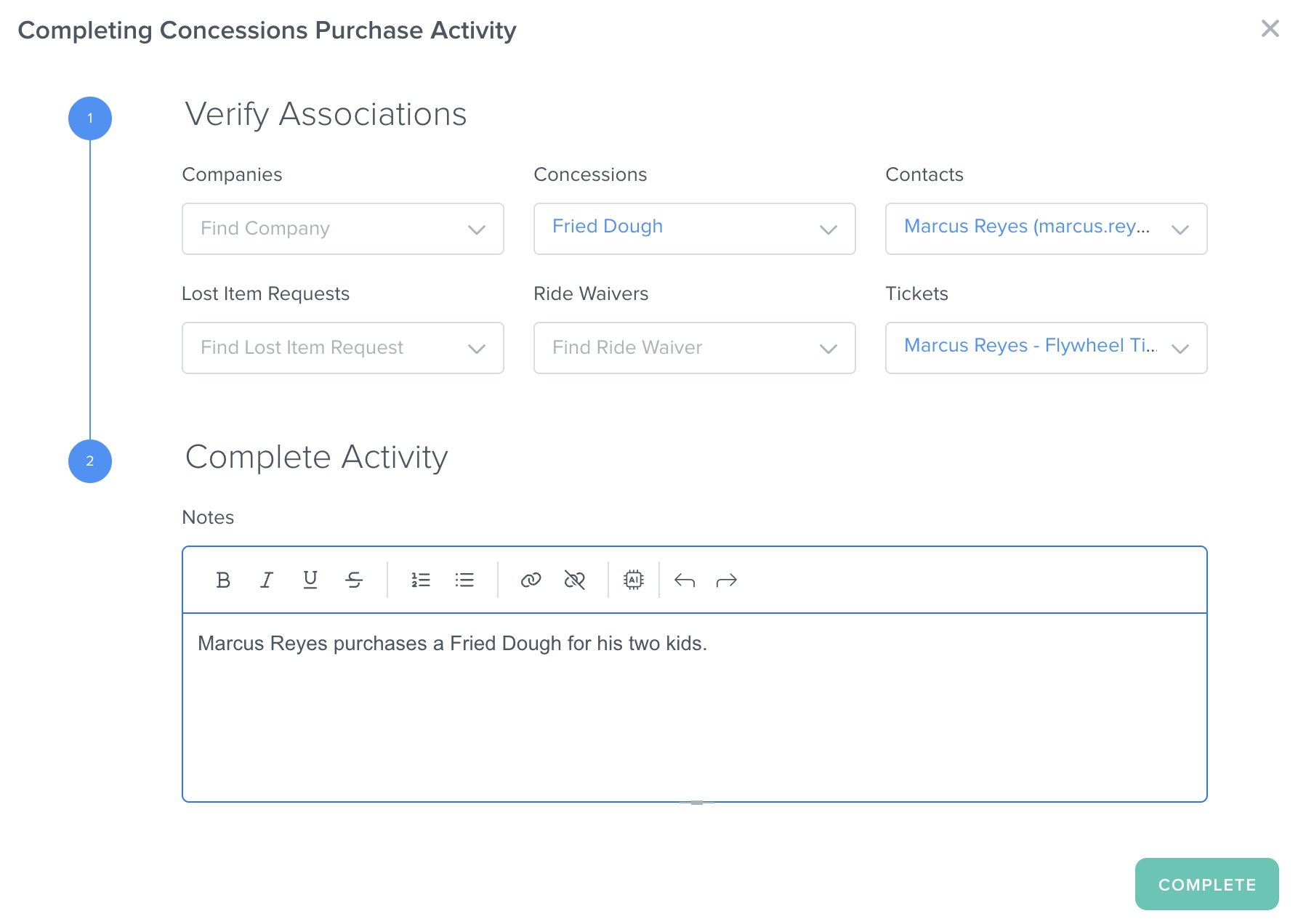
Complete the **Concession Purchases** activity using the details below.
**Verify Associations**
* **Companies:** *Blank*
* **Concessions:** In the drop down, select **Fried Dough**.
* **Contacts:** Marcus Reyes
* **Lost Item Requests:** *Blank*
* **Ride Waivers:** *Blank*
* **Tickets:** Select **Marcus Reyes - Flywheel Ticket**
In the Notes section, write, "Marcus Reyes purchases a Fried Dough for his two kids."
{% endstep %}
{% step %}
#### Select **COMPLETE**
{% endstep %}
{% endstepper %}
Now you should see that the logged space.vars.activity appears on Marcus’s space.vars.timeline with the selected date and time, assigned staff member, space.vars.activity details, related space.vars.entities, and any notes:
***
## Apply What You've Learned
Now that you’ve logged one space.vars.activity, apply what you’ve learned. Log another space.vars.activity using the same steps. This time, log the space.vars.activity of Marcus buying a soda for his wife Elena.
You can complete **Concession Purchases Activity** using the details below:
**Verify Associations**
* **Companies:** *Blank*
* **Contacts:** Marcus Reyes
* **Concessions:** Soda
* **Lost Item Requests:** *Blank*
* **Ride Waivers:** *Blank*
* **Tickets:** Marcus Reyes - Flywheel Ticket
**Complete Activity**
* **Notes:** Marcus purchases a soda for his wife Elena.
When you're finished, your logged space.vars.activity should appear on the space.vars.timeline like this:
***
## How This Fits Into Agentic Workflows
Logged space.vars.activities do more than record history. They become triggers and data inputs for space.vars.workflows and space.vars.automations across space.vars.Kizen\_company\_name.
In the Reyes family example, logging a fried dough purchase can automatically initiate follow-up actions, such as updating inventory levels, flagging allergy-related notes, or contributing to concession sales reports. Because each space.vars.activity is connected to space.vars.contacts, Tickets, and staff members, space.vars.workflows can respond to real interactions as they happen.
When space.vars.activities are logged, you can use them to:
* Trigger space.vars.automations based on space.vars.activity type, completion status, or timing
* Update related space.vars.entities, such as Tickets or space.vars.objects
* Route information to the right teams, such as notifying Guest Services about allergy-related notes
* Power reporting and space.vars.dashboards with accurate, real-world interaction data
By logging space.vars.activities consistently, space.vars.timelines become actionable. Instead of static space.vars.entities, they drive space.vars.automation, insights, and coordinated responses across teams.
***
## Logging Activities Capabilities By Role
{% columns %}
{% column %}
#### Admins
* Configure space.vars.activity types that can be logged, including required fields and associations
* Define which space.vars.objects (space.vars.contacts, Guests, Tickets, space.vars.objects) appear on logged space.vars.activities
* Control permissions for who can log, edit, or complete space.vars.activities
* Ensure logged space.vars.activities display correctly on space.vars.timelines and in reports
* Maintain consistency in how interactions, purchases, and notes are recorded across teams
{% endcolumn %}
{% column %}
#### Technical Builders
* Log space.vars.activities programmatically using the API
* Trigger space.vars.workflows and space.vars.automations based on logged space.vars.activity events
* Enrich logged space.vars.activities with data from external systems or integrations
* Update related space.vars.entities automatically when space.vars.activities are logged
* Use logged space.vars.activity data as inputs for reporting, space.vars.dashboards, and downstream processes
{% endcolumn %}
{% endcolumns %}
***
## Tying It Back Into Your Industry
In the space.vars.Theme\_park\_name example, logging the fried dough purchase captures more than a completed transaction. It captures who was involved, what happened, when it happened, and any important context, such as a guest’s allergy-related question. That logged interaction becomes part of the family’s space.vars.timeline and informs future decisions.
The same logging pattern applies across industries where completed interactions, conversations, and outcomes need to be preserved and understood in context.
{% tabs %}
{% tab title="Insurance" %}
Logging a fried dough purchase is similar to logging completed client interactions in insurance.
Examples include:
* A call where a policyholder asks about coverage limitations
* A completed claim discussion with notes on next steps
* A client question that signals potential risk, coverage gaps, or follow-up needs
Just as the allergy question adds important context at space.vars.Theme\_park\_name, logged insurance Activities capture details that support compliance, continuity of service, and accurate reporting.
{% endtab %}
{% tab title="Healthcare" %}
At space.vars.Theme\_park\_name, logging captures what happened during a guest visit. In healthcare, logging space.vars.activities documents completed care interactions and patient communication.
Examples include:
* A completed appointment with provider notes
* A patient question about medication, allergies, or side effects
* A follow-up conversation after a procedure or lab result
Logging these interactions ensures care teams share the same patient history and can make informed decisions over time.
{% endtab %}
{% tab title="Financial Services" %}
The fried dough interaction represents a completed moment with meaningful context. In financial services, Logged space.vars.activities capture completed client touchpoints and decision history.
Examples include:
* A client meeting discussing portfolio changes
* A completed compliance or suitability review
* A conversation revealing new financial goals or concerns
By logging space.vars.activities consistently, financial teams preserve decision context, support regulatory accountability, and maintain accurate client space.vars.timelines.
{% endtab %}
{% endtabs %}
***
## What's Next?
Next, we’ll cover [Reports in Kizen](/docs/kizen-basics/kizen-in-action/reporting-in-kizen-or-kizen-in-action.md), where you’ll learn how to build, customize, and analyze reports to gain visibility into your data, space.vars.activity performance, and space.vars.automation outcomes.
---
# Agent Instructions
This documentation is published with GitBook. GitBook is the documentation platform designed so that both humans and AI agents can read, navigate, and reason over technical content effectively. Learn more at gitbook.com.
## Querying This Documentation
If you need additional information that is not directly available in this page, you can query the documentation by asking a question.
Perform an HTTP GET request on the following URL with the `ask` and `goal` query parameters:
```
GET https://developer.kizen.com/docs/kizen-basics/kizen-in-action/tracking-your-activity-in-timelines-or-kizen-in-action.md?ask=&goal=
```
`ask` is the immediate question: it should be specific, self-contained, and written in natural language.
`goal` is what the user is ultimately trying to achieve, the reason they need the answer. Sharing it helps GitBook give you a better, more relevant answer. A goal is most helpful when it describes the outcome the user wants rather than restating the question. For example, with `ask=how do I create an API token`, a goal like `automate deployments from our CI pipeline` lets GitBook tailor the answer to that use case.
The response will contain a direct answer to the question and relevant excerpts and sources from the documentation.
Use this mechanism when the answer is not explicitly present in the current page, you need clarification or additional context, or you want to retrieve related documentation sections.